You can reach the latest technical information here: Adding Custom Vulnerability Checks to Your Acunetix Installation
Vulnerability checks in Acunetix Web Vulnerability Scanner consists of two files;
- *.script – The actual vulnerability check written in JavaScript. Such scripts are stored in the <C:\ProgramData\Acunetix WVS x\Data\Scripts> directory.
- *.xml – This file contains all the documentation related to the vulnerability description, such as vulnerability details, remediation, severity level and other details. These XML files use VulnXML format and are stored in the <C:\ProgramData\Acunetix WVS x\Data\Scripts\XML> sub directory in the Acunetix WVS installation directory.
Creating a new vulnerability check
1. Writing the Vulnerability check script
To write a new vulnerability check script, you can use any text editor of your choice, or else WVS Scripting tool which is available for free.

The tool and detailed Acunetix WVS scripting reference can be downloaded from the following URL; https://www.acunetix.com/download/tools/WVSSDK.zip. Once downloaded, extract the tool in the same Acunetix WVS installation directory. We recommend you use our tool since it is specifically designed to assist you in writing Acunetix WVS Vulnerability Checks. It also includes a number of functions to help you test your scripts.
2. Writing the vulnerability XML file (VulnXML format)
To create a new XML file using VulnXML format, use Acunetix WVS Vulnerability Editor which is available from the Acunetix WVS Program Group.
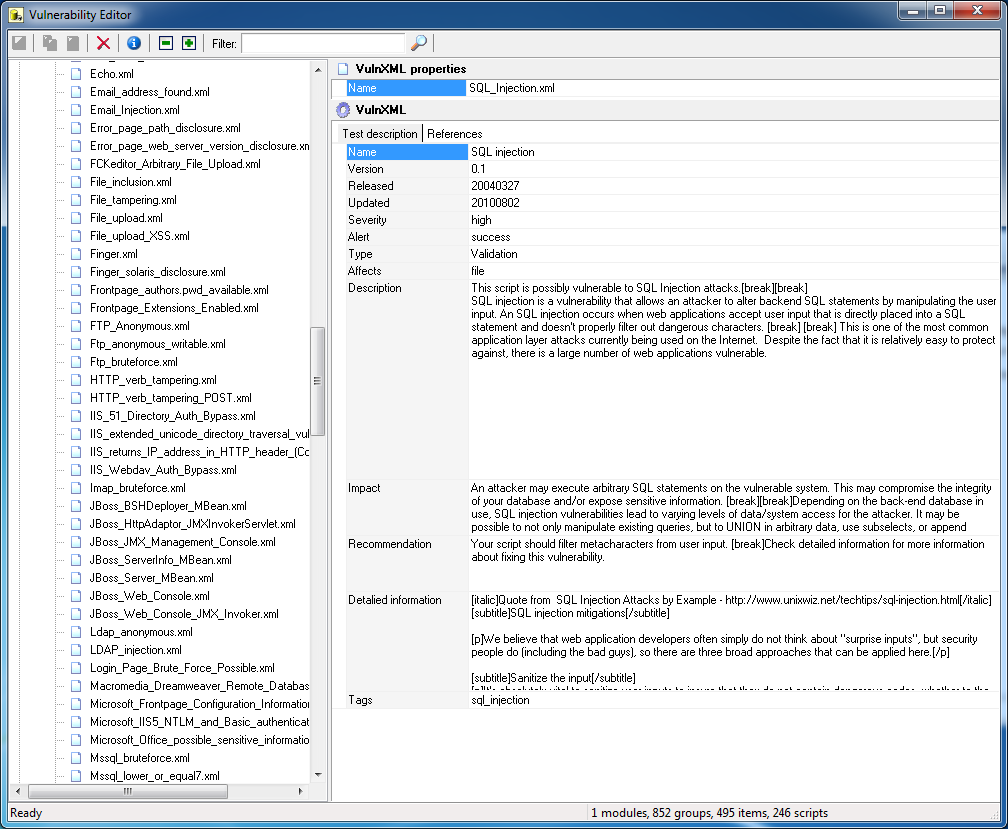
Follow the below procedure to create a new VulnXML file for a custom vulnerability check;
- Right Click the VulnXML node and select ‘Add Vulnerability’.
- Specify the VulnXML filename and also specify if you want to use the default template.
- Specify all the required details to populate the VulnXML vulnerability file. For a detailed description of all fields available refer to the following list;
- Name
-The name of the vulnerability (e.g., could be the same as the name given to the VulnXML file.) - Version
– Test Version number - Released
– Date when Test/Vulnerability was created (yyyy/mm/dd) - Updated
– Date of last time this Vulnerability was updated (yyyy/mm/dd) - Severity
– Defines the vulnerability level e.g. high severity indicates that if this test generates failures, the target being scanned has a severe vulnerability - Alert
– Defines if the alert is to be triggered on success or failure of the test - Type
– Select the type of vulnerability from the drop down menu, e.g. parameter manipulation, canonicalization etc - Affects
– Defines which components of the target is affected by such vulnerability, e.g. server, directory etc - Description
– This field should contain a description of the vulnerability - Impact
– This field should contain information on the impact generated if such vulnerability is exploited - Recommendation
– This field should contain a number of recommendations to help the developer eliminate the reported vulnerability - Detailed Information
– This field should contain a detailed technical description of the reported vulnerability - Tags
– tags related to the vulnerability.
- Name
In the ‘References’ tab you can specify links to additional information about the vulnerability (e.g., cause and related fix). You can add additional references by right clicking and selecting ‘Add reference’.
- Database
– Specify the Link heading/title of the article/information - URL
– Contains the URL.
Modifying Vulnerability check
Note: The built-in vulnerability checks cannot be modified. Only their VulnXML files (vulnerability details) can be modified.
Modifying a custom vulnerability check
To modify a custom vulnerability check, open the script in the WVS Scripting tool and proceed with the desired changes. The WVS Scripting tool and detailed scripting reference are available from; https://www.acunetix.com/download/tools/WVSSDK.zip.
Modifying the vulnerability VulnXML file
To modify an existing vulnerability check, open Acunetix Vulnerability Editor and select the script to edit from the VulnXML node. Click on the section which you would like to edit and proceed with the text changes. Once ready click on the ‘Save’ icon (first icon) in the top left corner or the Vulnerability Editor.
To create a new XML file using VulnXML format, use Acunetix WVS Vulnerability Editorwhich is available from the Acunetix WVS Program Group.
Get the latest content on web security
in your inbox each week.
THE AUTHOR